
Graphic Tutorial
Using the App is the Smart way to control your lights
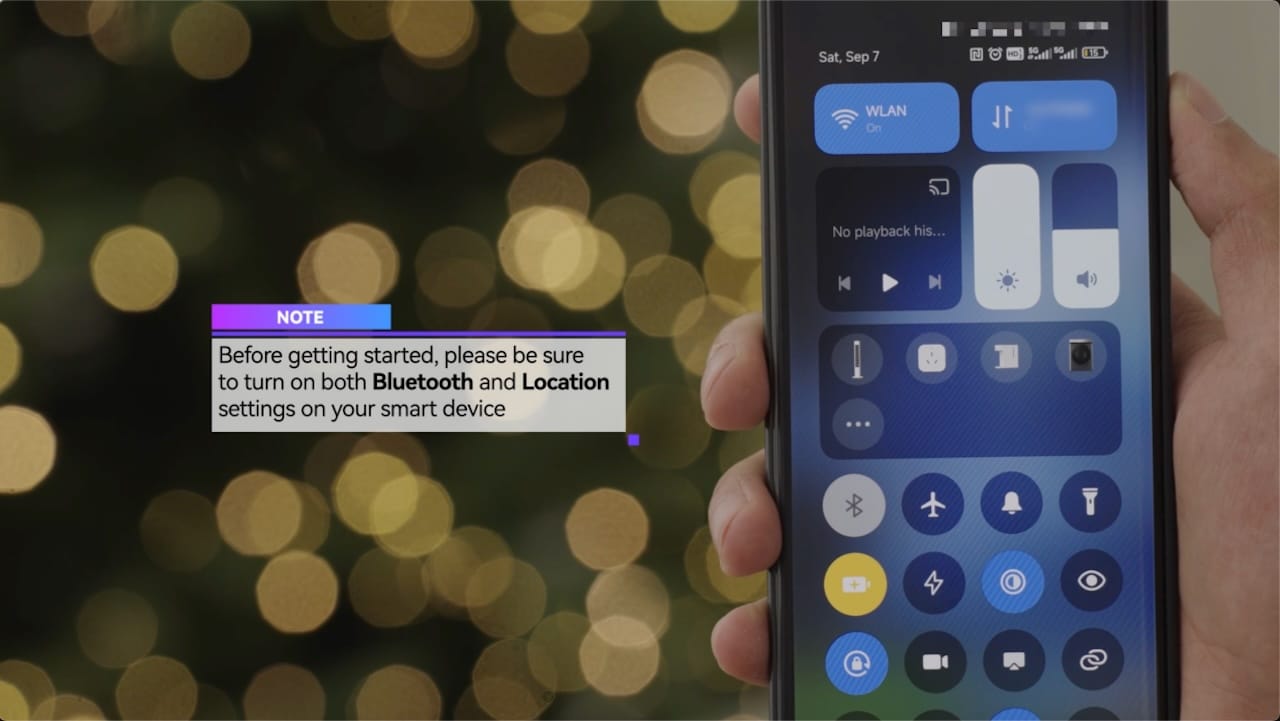
NOTE
Before getting started, please be sure to turn on both Bluetooth and Location settings on your smart device
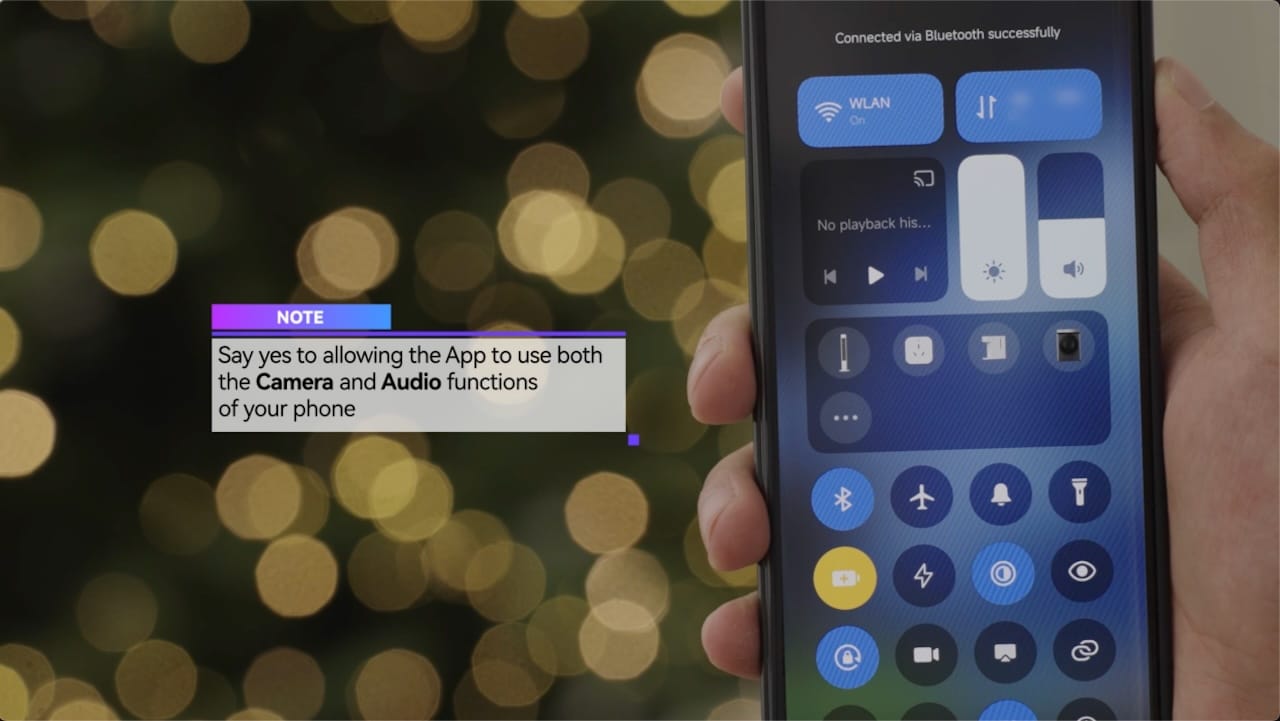
Say yes to allowing the App to use both the Camera and Audio functions of your phone
01 FIND THE QR CODE ON THE CONTROLLER
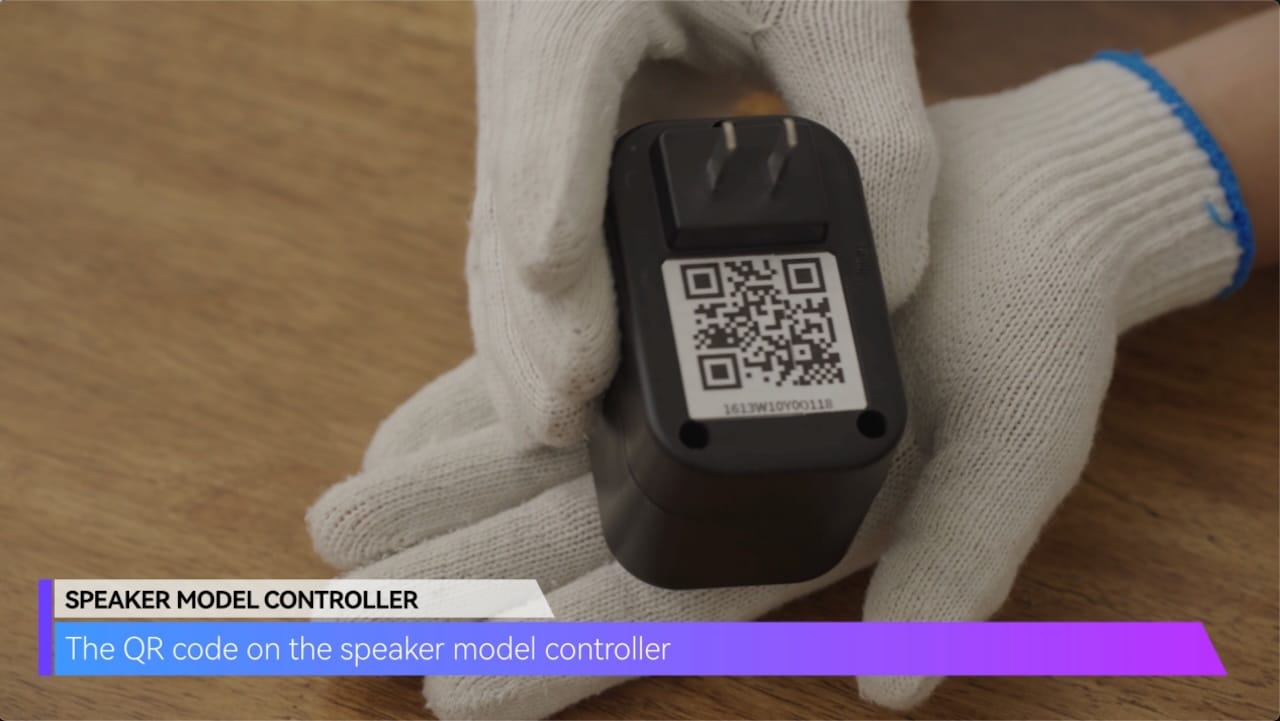
SPEAKER MODEL CONTROLLER
The QR code on the speaker model controller
02 PAIRING THE LIGHTS TO THE CONTROLLER
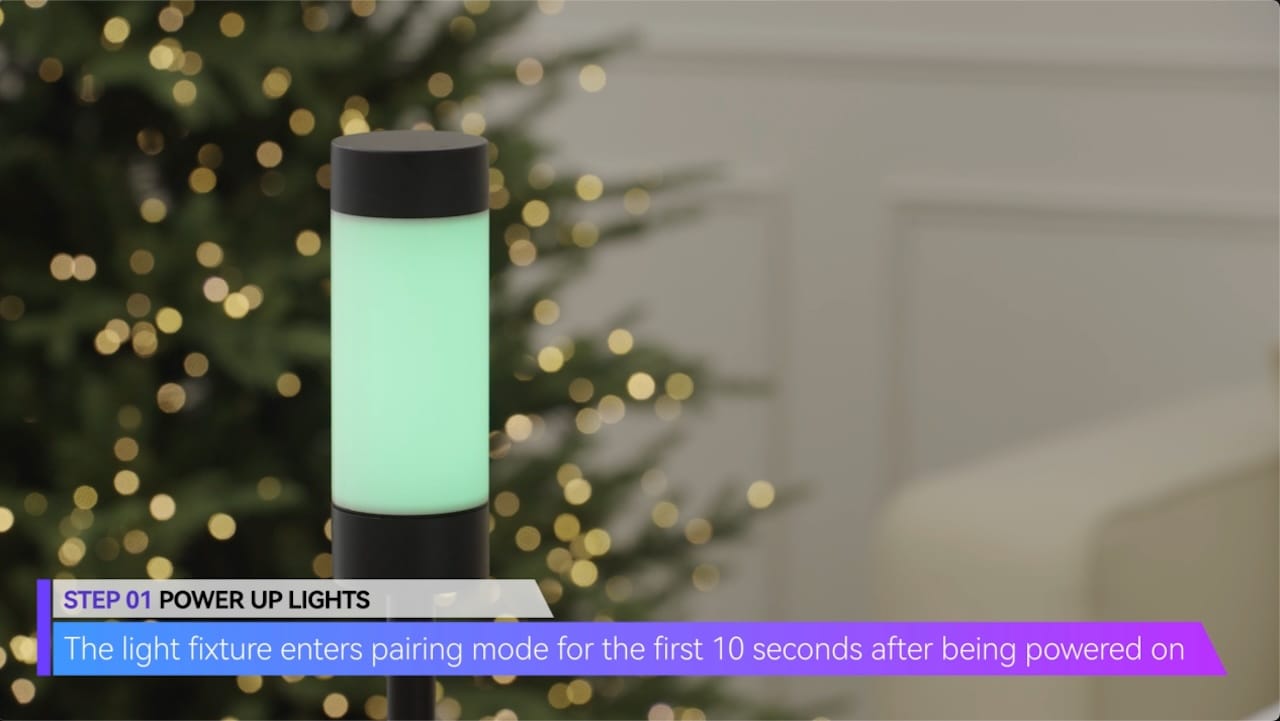
STEP 01 POWER UP LIGHTS
The light fixture enters pairing mode for the first 10 seconds after being powered on
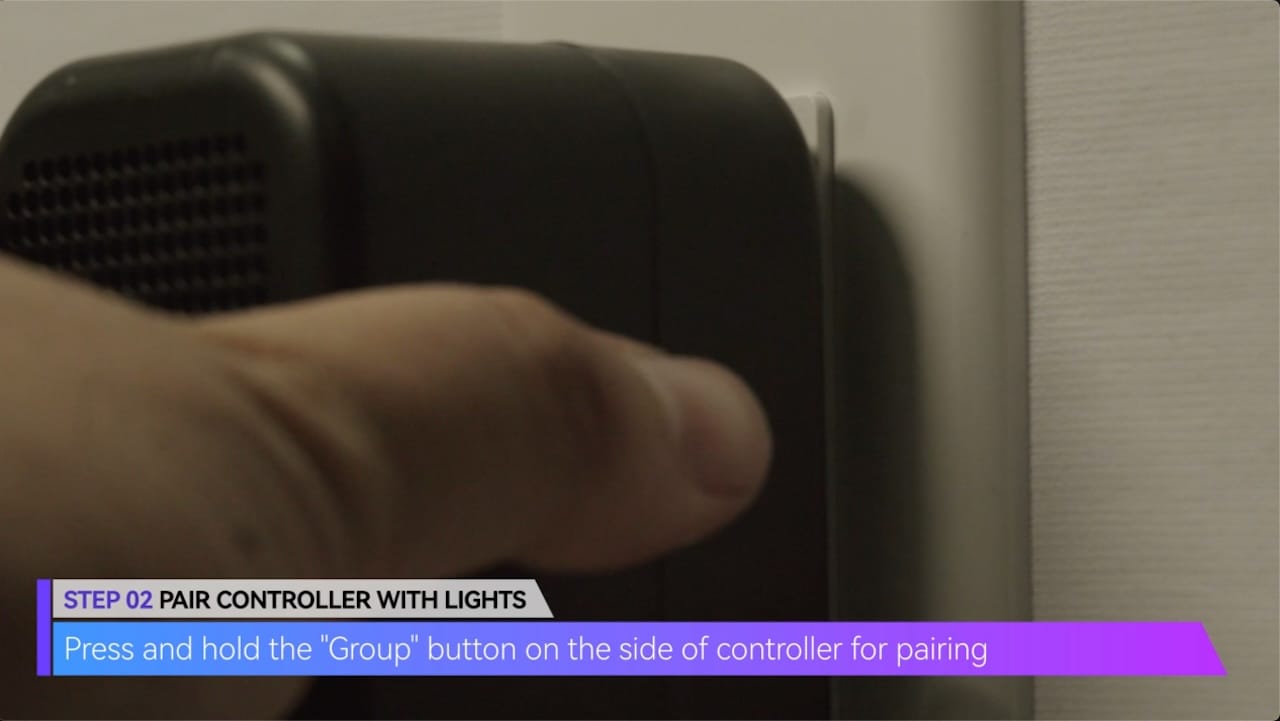
STEP 02 PAIR CONTROLLER WITH LIGHTS
Press and hold the “Group” button on the side of controller for pairing
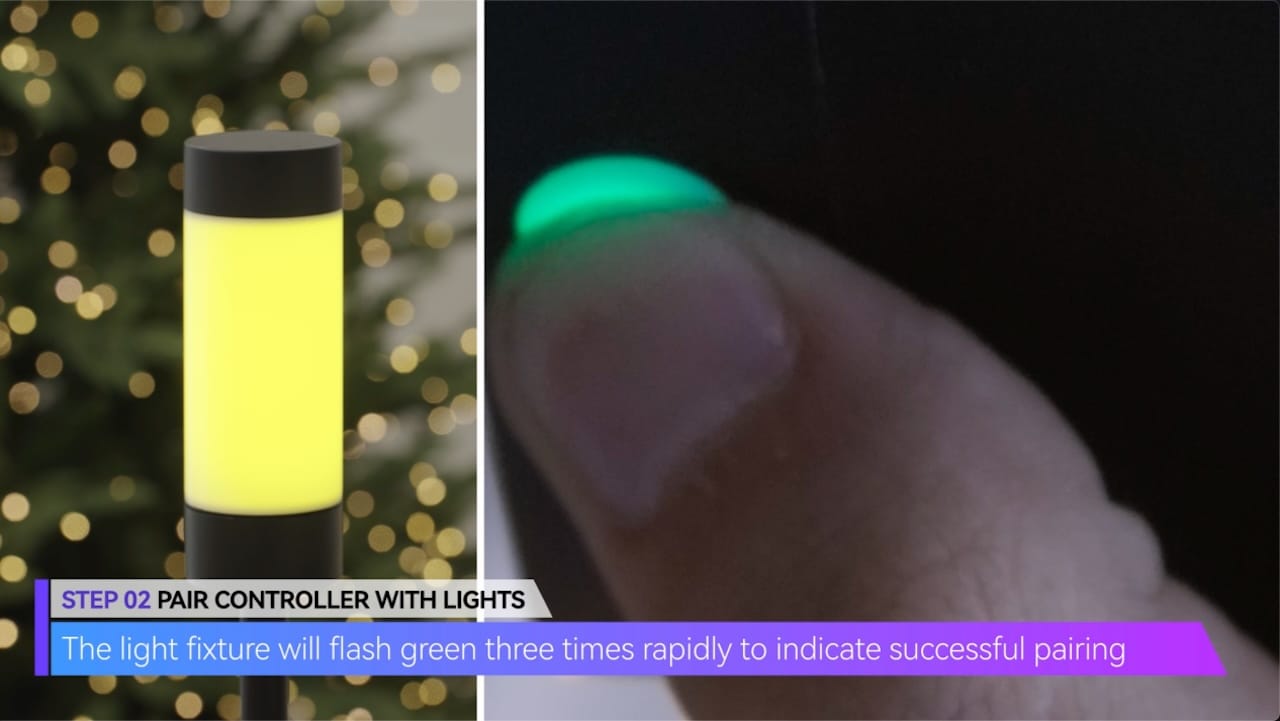
The light fixture will flash green three times rapidly to indicate successful pairing
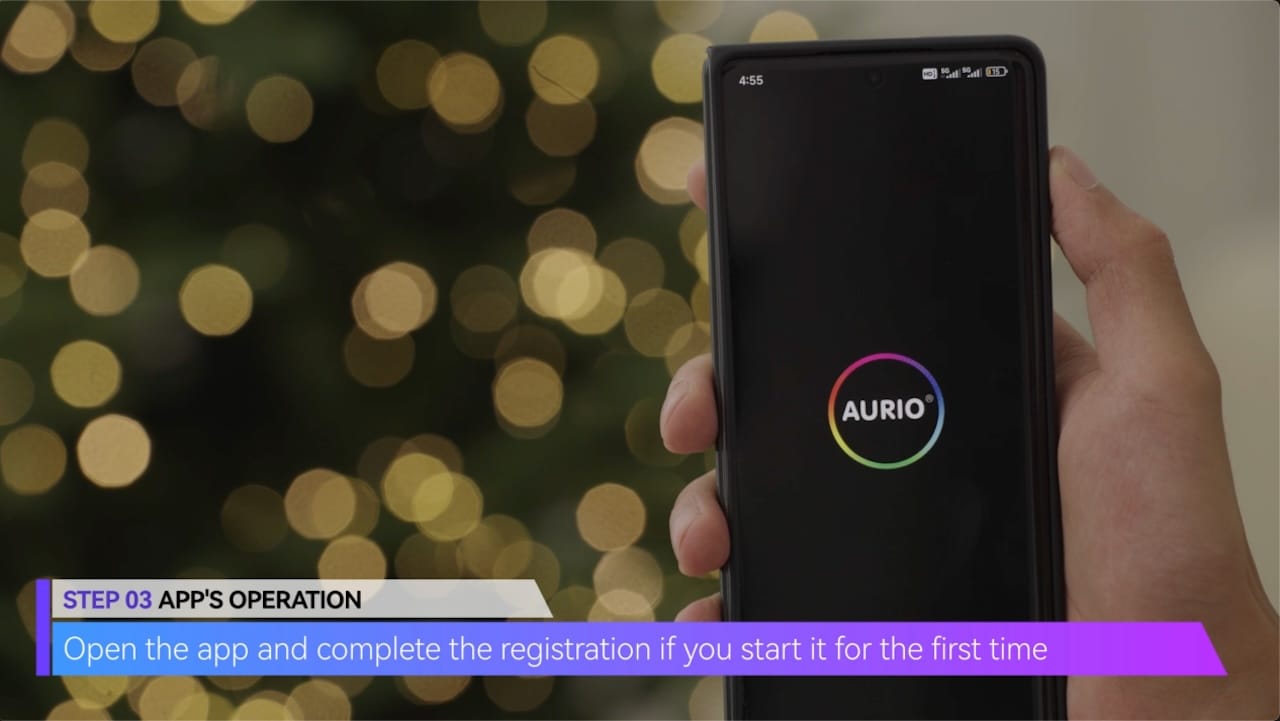
STEP 03 APP'S OPERATION
Open the app and complete the registration if you start it for the first time
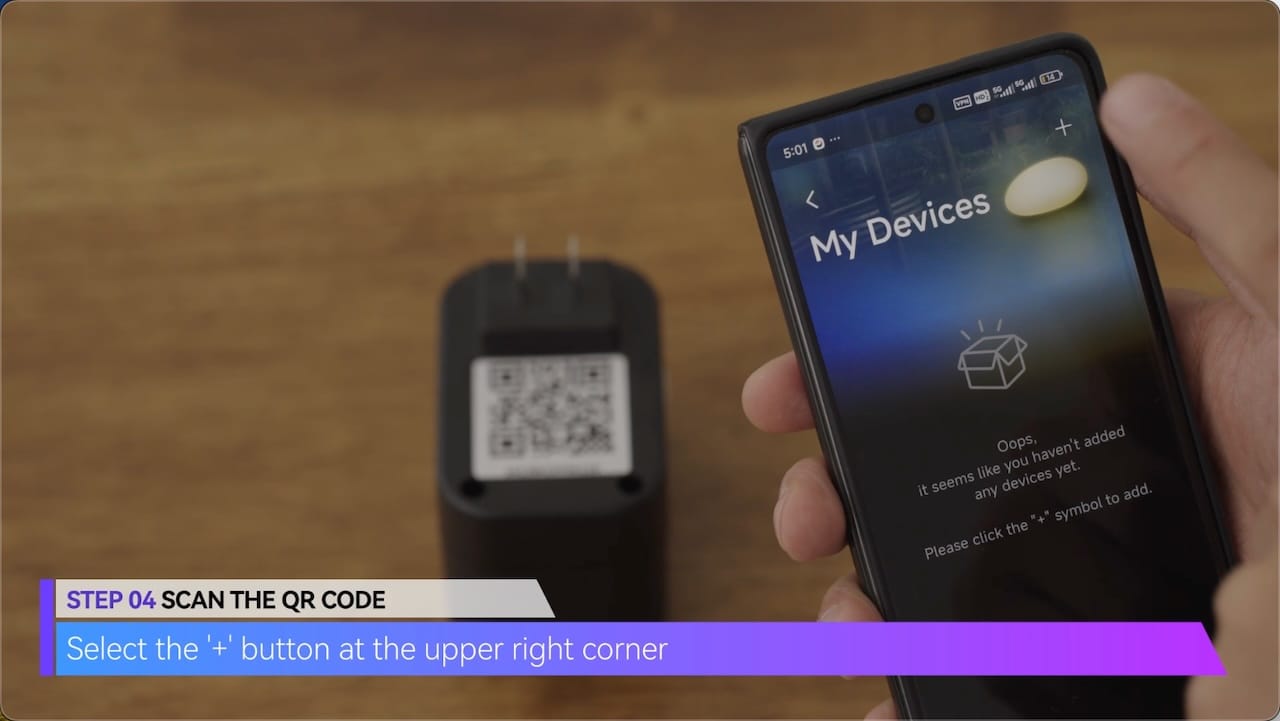
STEP 04 SCAN THE QR CODE
Select the ‘+’ button at the upper right corner
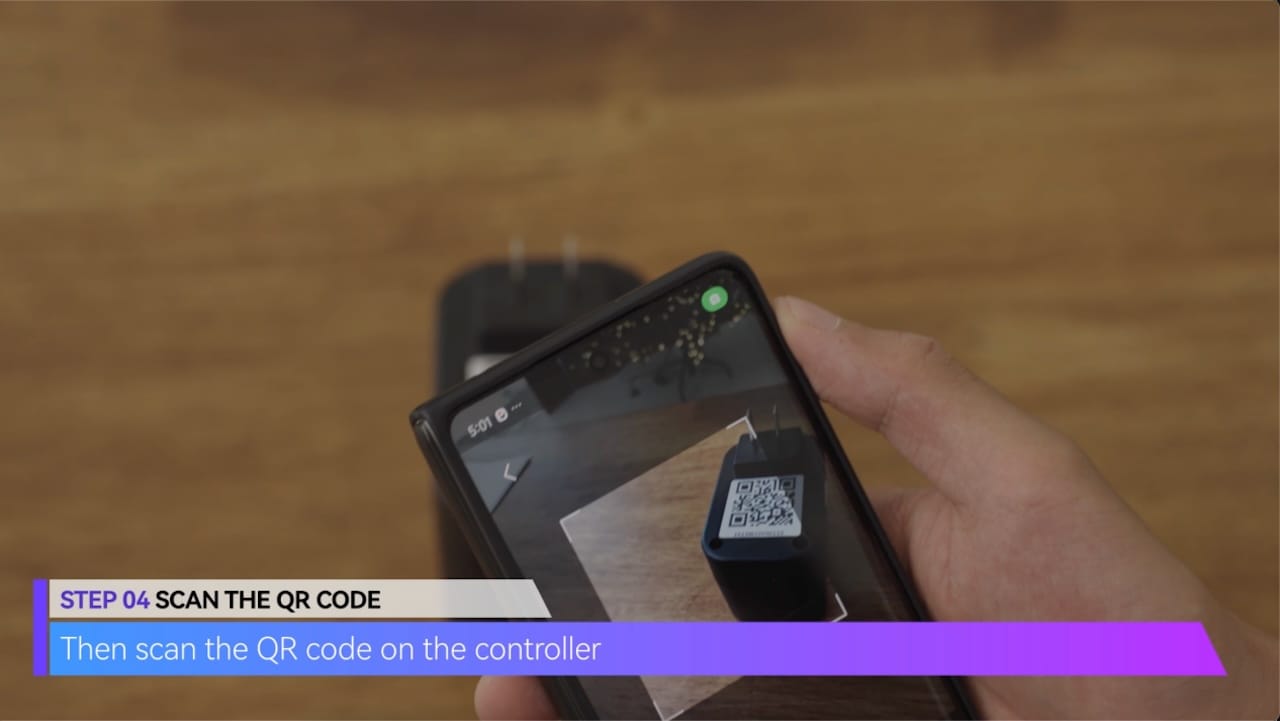
Then scan the QR code on the controller
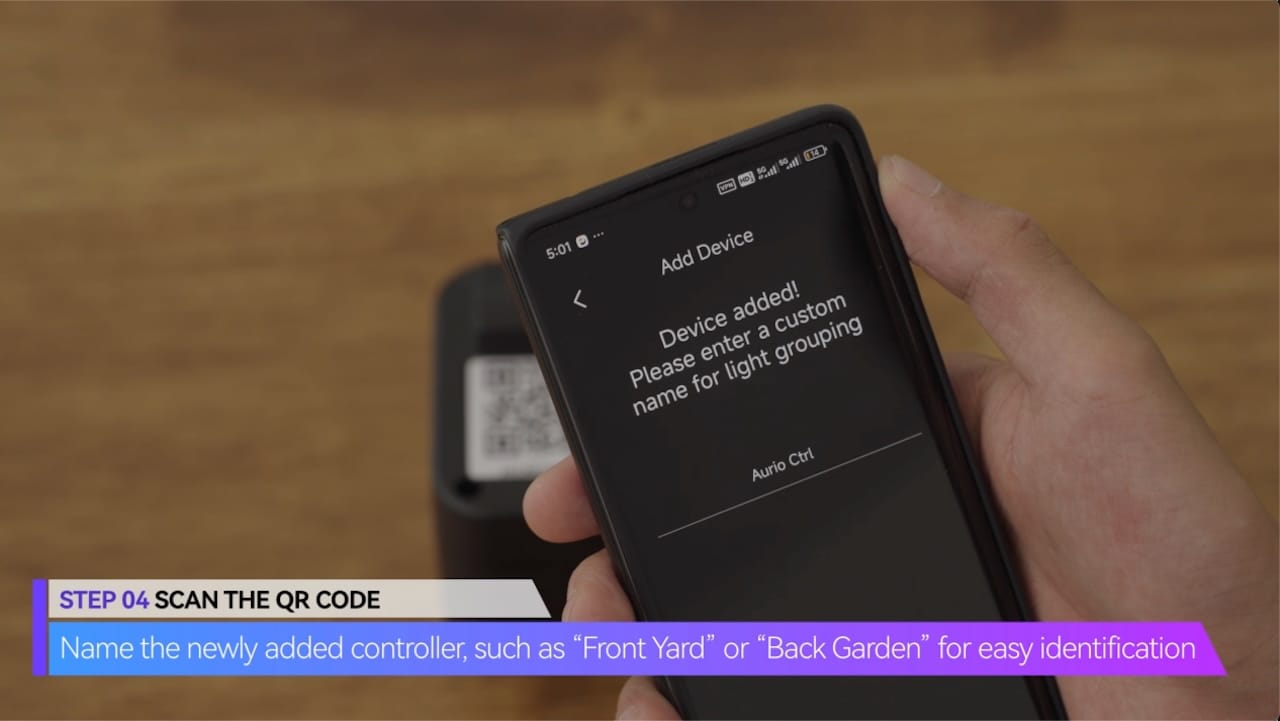
Name the newly added controller, such as “Front Yard” or “Back Garden” for easy identification
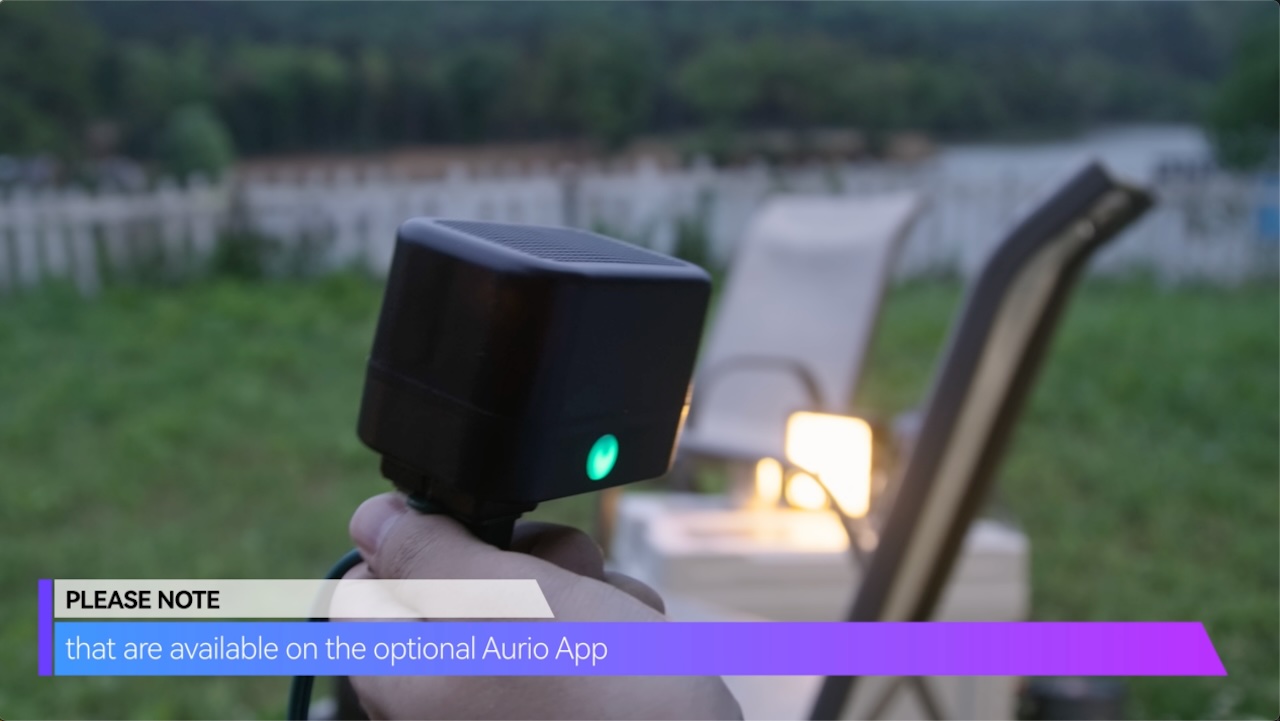
that are available on the optional Aurio App
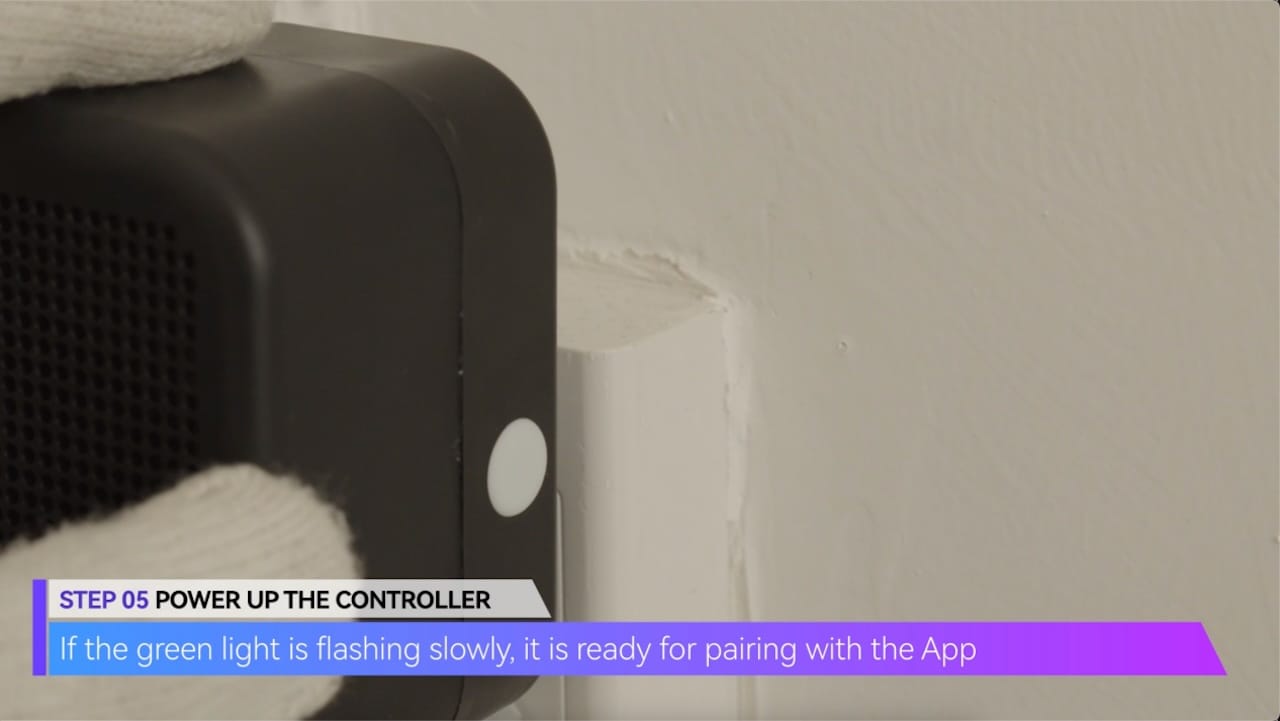
STEP 05 POWER UP THE CONTROLLER
If the green light is flashing slowly, it is ready for pairing with the App
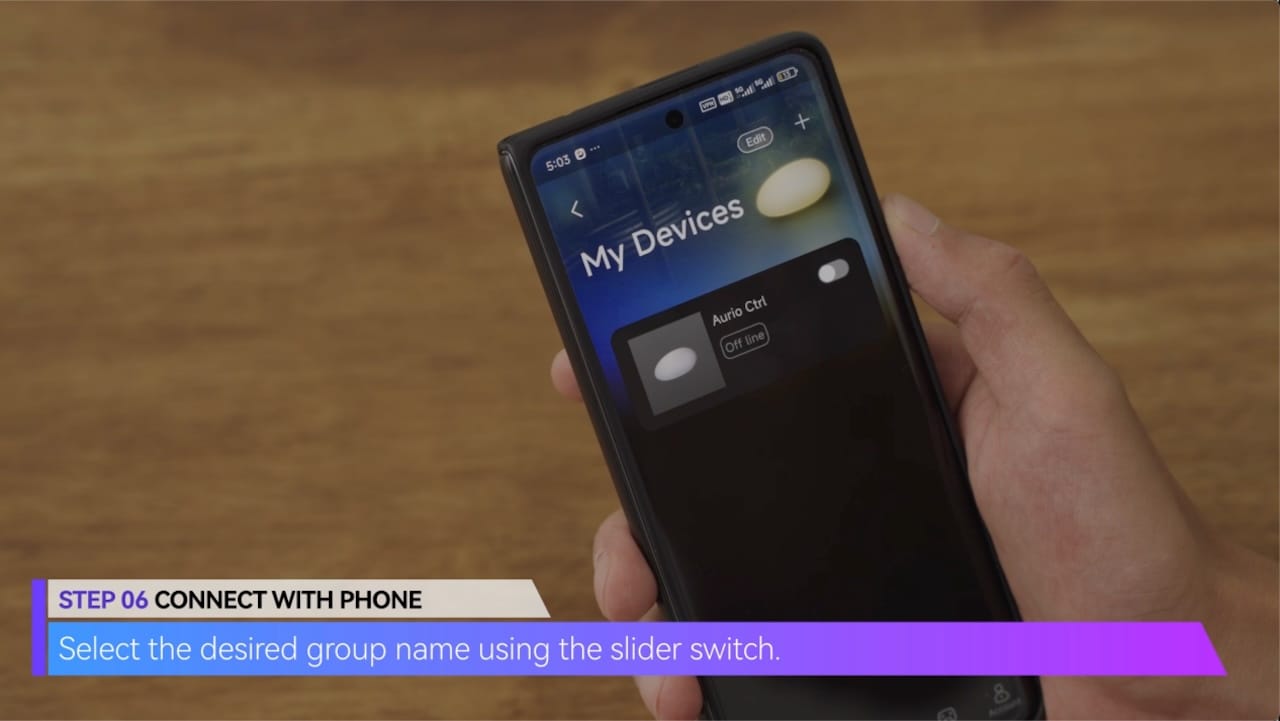
STEP 06 CONNECT WITH PHONE
Select the desired group name using the slider switch.
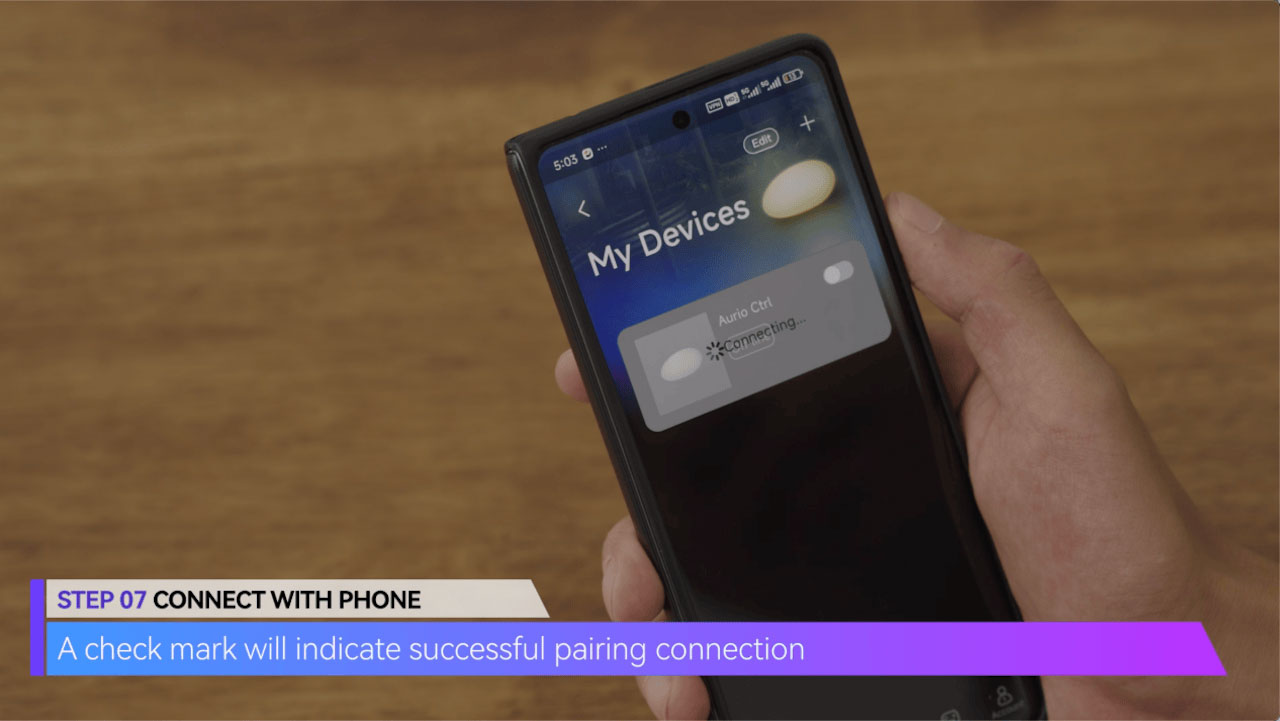
STEP 07 CONNECT WITH PHONE
A check mark will indicate successful pairing connection
03 FUNCTIONS ON APP
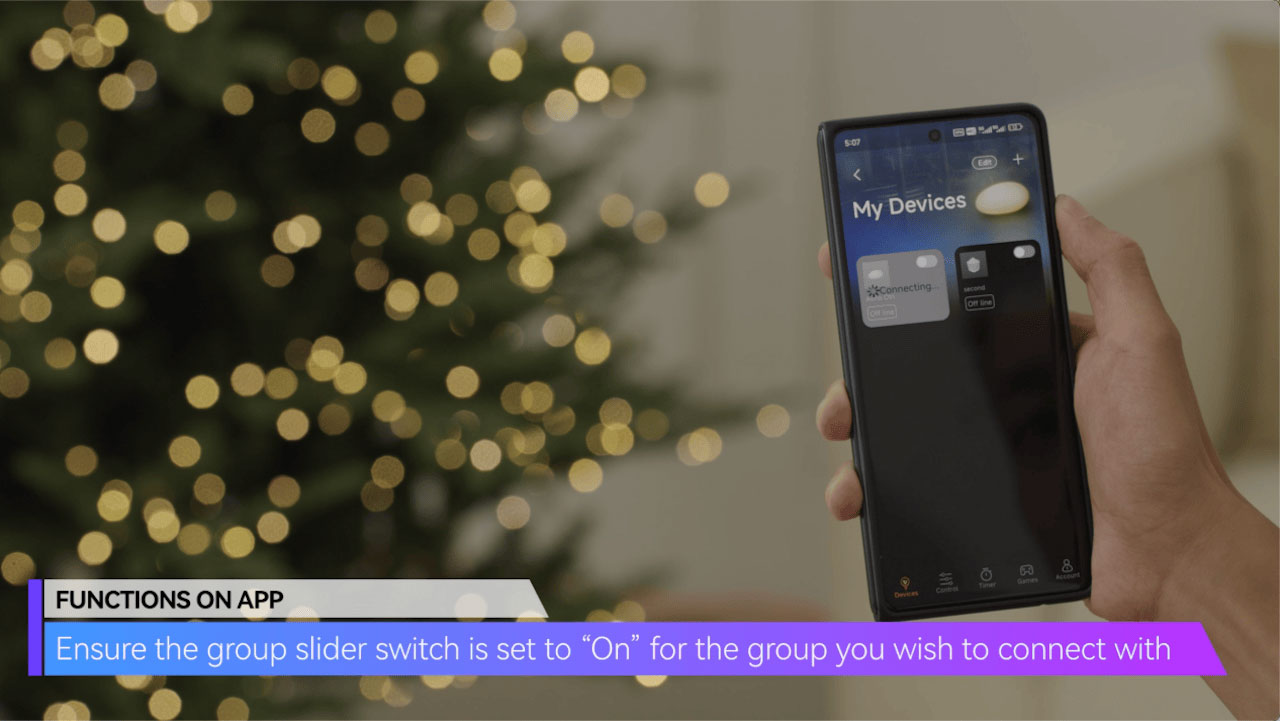
FUNCTIONS ON APP
Ensure the group slider switch is set to “On” for the group you wish to connect with
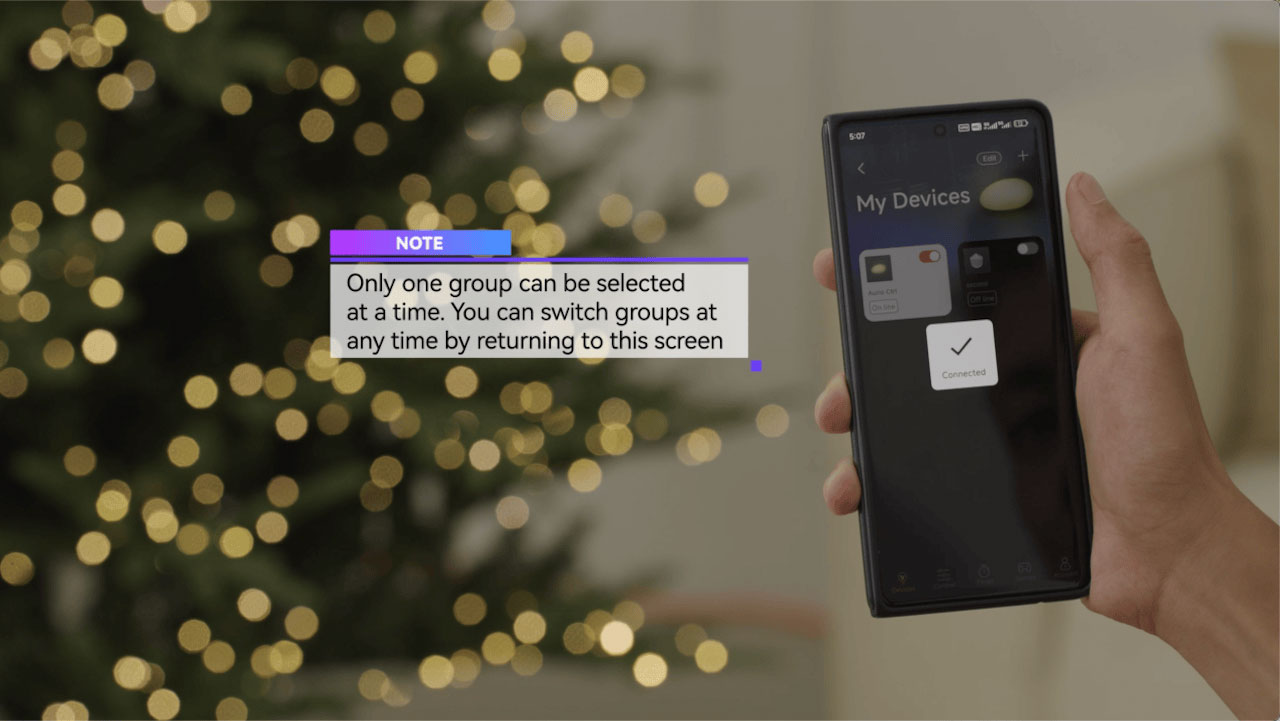
NOTE
Only one group can be selected at a time. You can switch groups at any time by returning to this screen
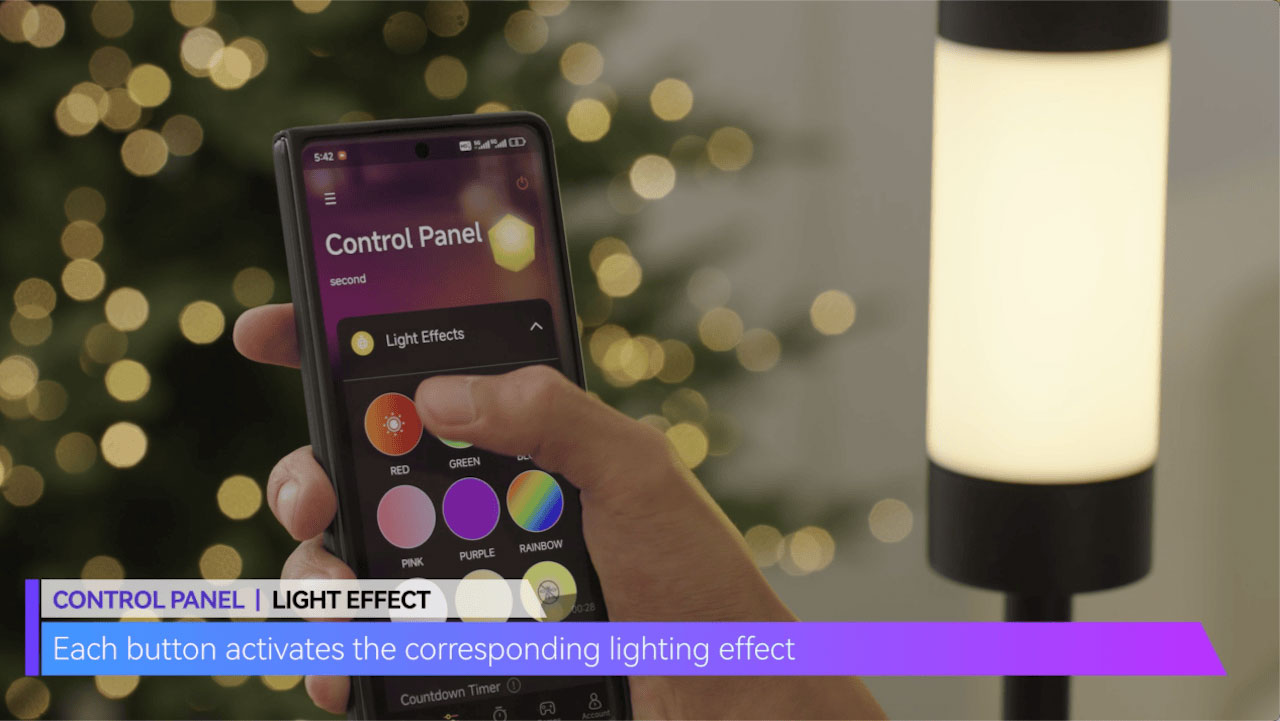
CONTROL PANEL | LIGHT EFFECT
Each button activates the corresponding lighting effect
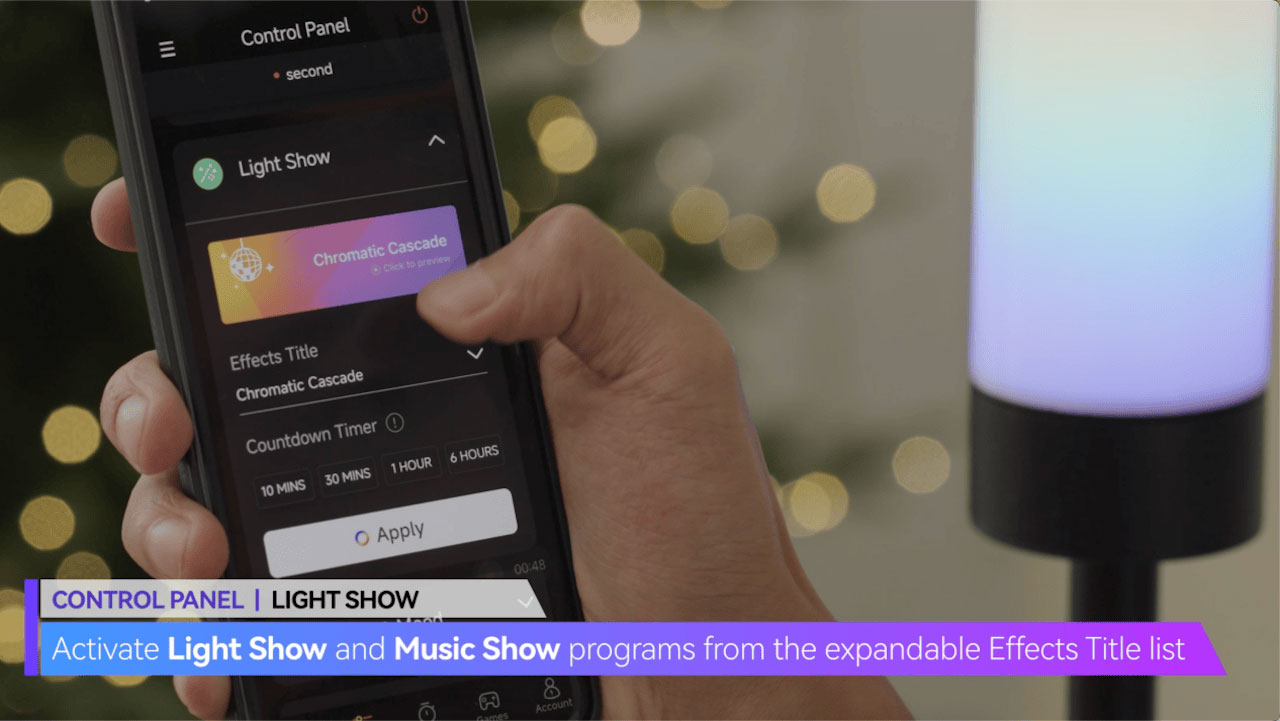
CONTROL PANEL | LIGHT SHOW
Activate Light Show and Music Show programs from the expandable Effects Title list
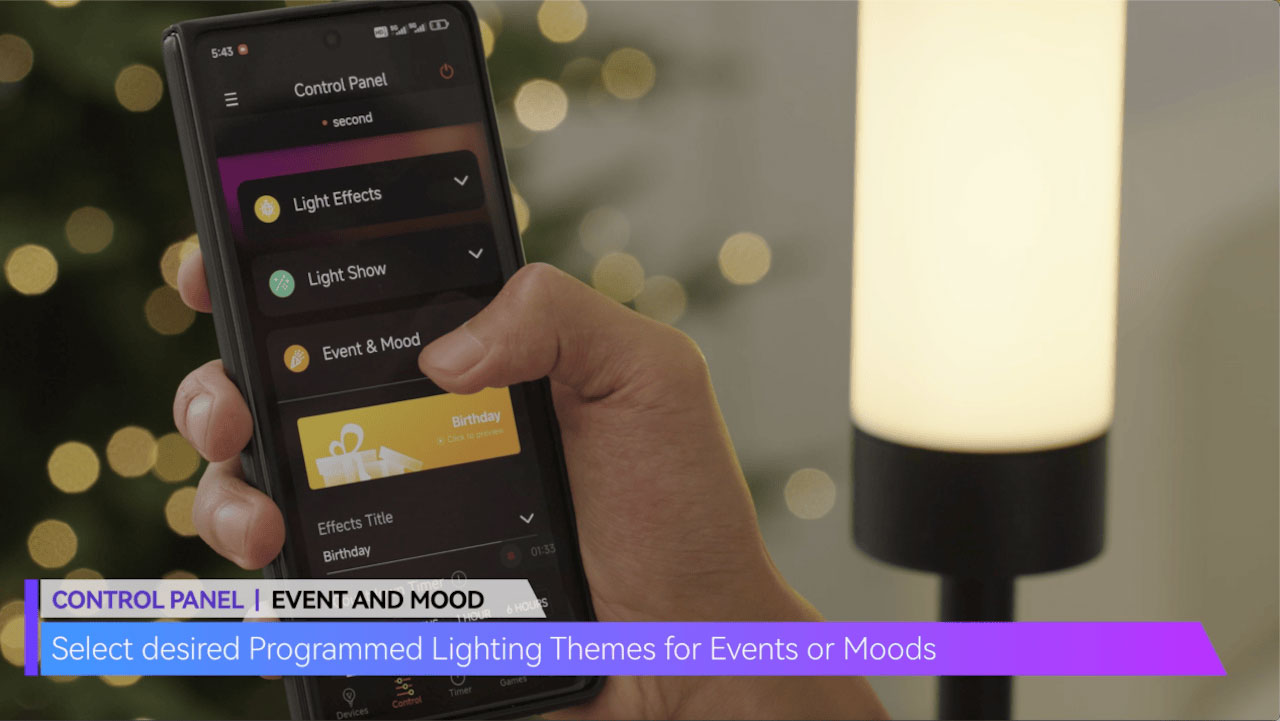
CONTROL PANEL | EVENT AND MOOD
Select desired Programmed Lighting Themes for Events or Moods
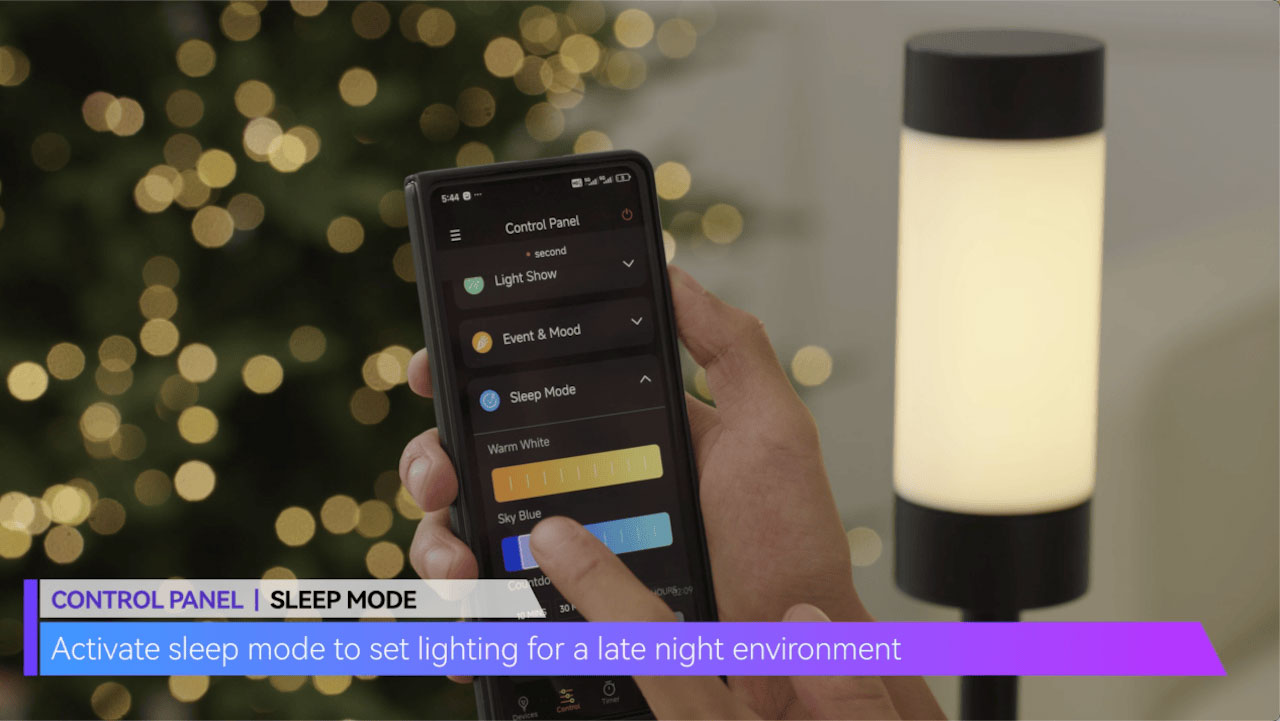
CONTROL PANEL | SLEEP MODE
Activate sleep mode to set lighting for a late night environment
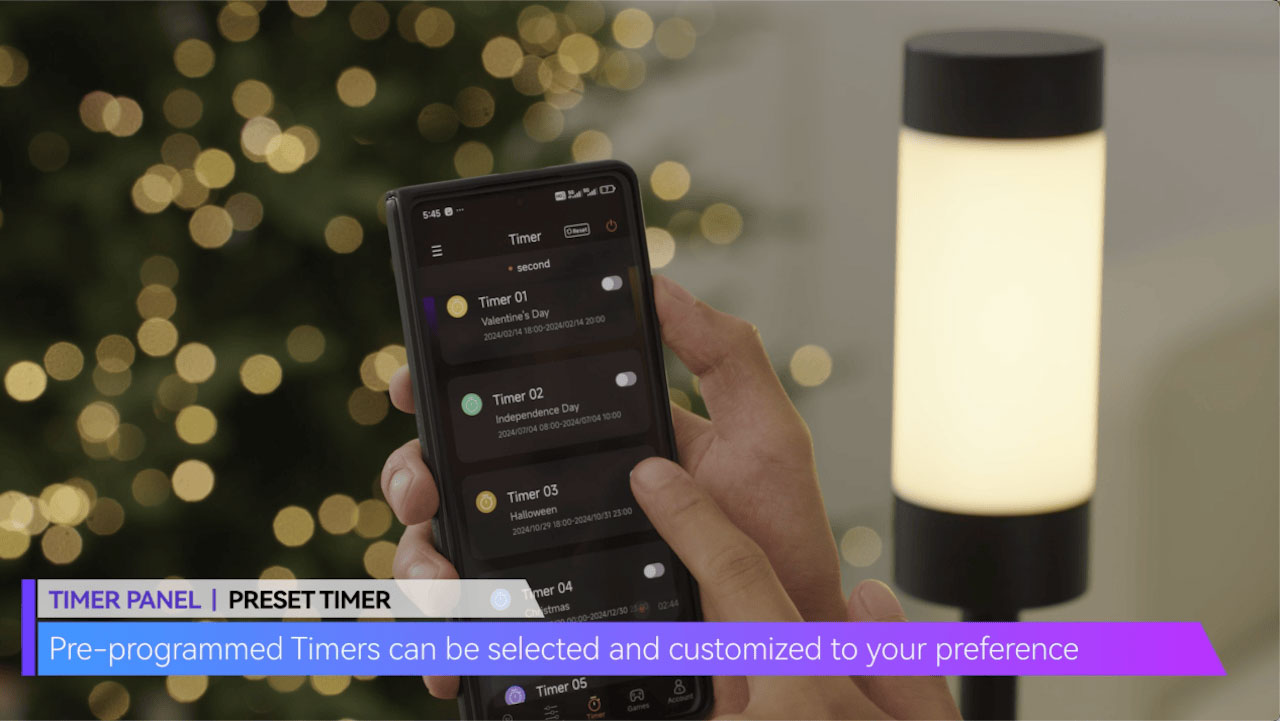
TIMER PANEL | PRESET TIMER
Pre-programmed Timers can be selected and customized to your preference
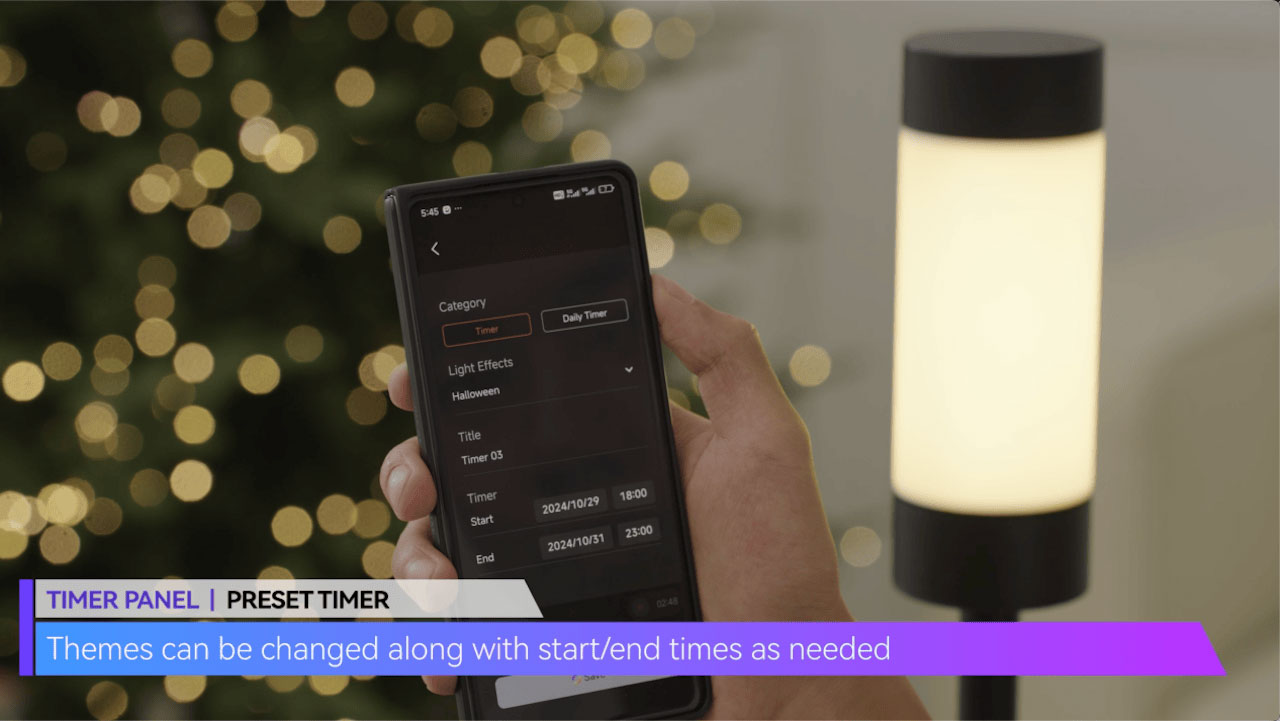
Themes can be changed along with start/end times as needed
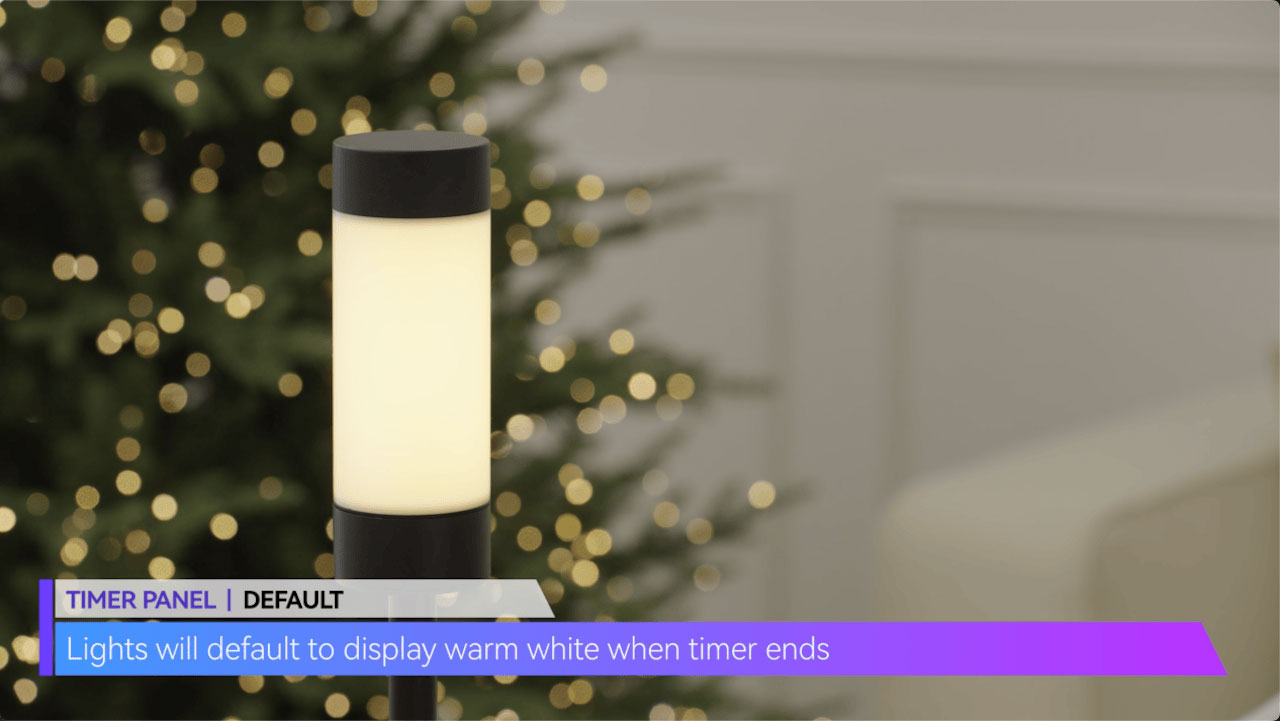
TIMER PANEL | DEFAULT
Lights will default to display warm white when timer ends